


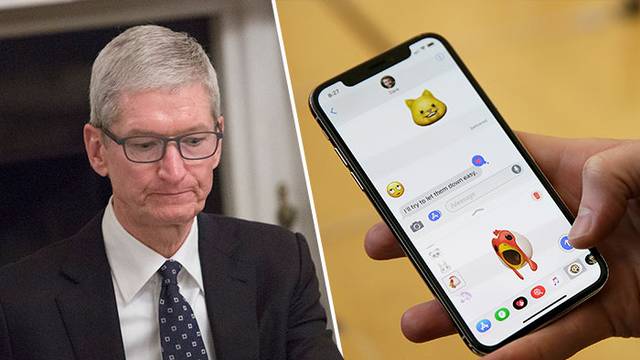
People use their smart phones too much, says Apple CEO Tim Cook. In a recent interview, he reveals an effective ploy to reduce mobile dependency.
It was during an interview at the “Time 100 Summit” event that Apple’s CEO aired his views on the use of smart cell phones – and how dependent many have become of his “teddy bears”.
It may seem a bit overwhelming, given Apple’s part in, and the huge merit of, the broad impact of smart phones. But according to Tim Cook, Apple has never had any interest in people using their phones constantly, writes Business Insider.
That has never been a goal for us. It is clear that some apps trigger users to keep scrolling thoughtlessly, as well as causing them to constantly pick up their phones to see what is happening, Tim Cook said during the interview.
Apple CEO Tim Cook did not mention any apps by name, but one would assume he is referring to services such as Facebook, Instagram, Twitter and Snapchat. But what can you do to reduce mobile dependency? For its own part, Tim Cook has introduced a simple rule to counteract the need to constantly pick up the phone.
– I have cleared a large number of notices that appear on my mobile. I asked myself, do I need to receive thousands of notifications every day? It does not add any value to my life, nor make me a better person.
Apple is fighting other technology giants
His statement should be seen in the light of a marketing strategy in which Apple wants to position itself as the technology giant that takes the greatest responsibility for privacy issues, managing sensitive data and users’ screen time.
Apple, like Google, has, for example, added a special feature to its operating system that, among other things, allows you to get activity reports that show how much the phone is used each week, and which apps are the biggest time thieves.
Then you turn off notifications on your mobile
Those who want to do like Tim Cook, or turn off their notifications completely, can do so in the “Settings” app on the Iphone or Ipad. By clicking on the menu item “Notices” you can then set which apps should be given notifications and which ones should not have that option.
On Android devices you can do the same by opening “Settings”, and then scroll down to the menu item “Notifications”. There you can set that only certain apps are allowed to display notifications – or that no app is allowed to do so at all.